
User Guide
Welcome to Clubs Connect, the platform designed to streamline university student organization management, event tracking, and communication with the bigger goal of connecting students to CSOs, and executive to SGO. Clubs Connect allows students to:
- Discover and follow campus societies (CSOs)
- Stay updated on events
- Interact with CSOs
- Access executive and SGO functionalities (for leaders)
This guide provides step-by-step instructions to help you navigate the platform effectively.
Getting Started
Section titled “Getting Started”Accessing the Application
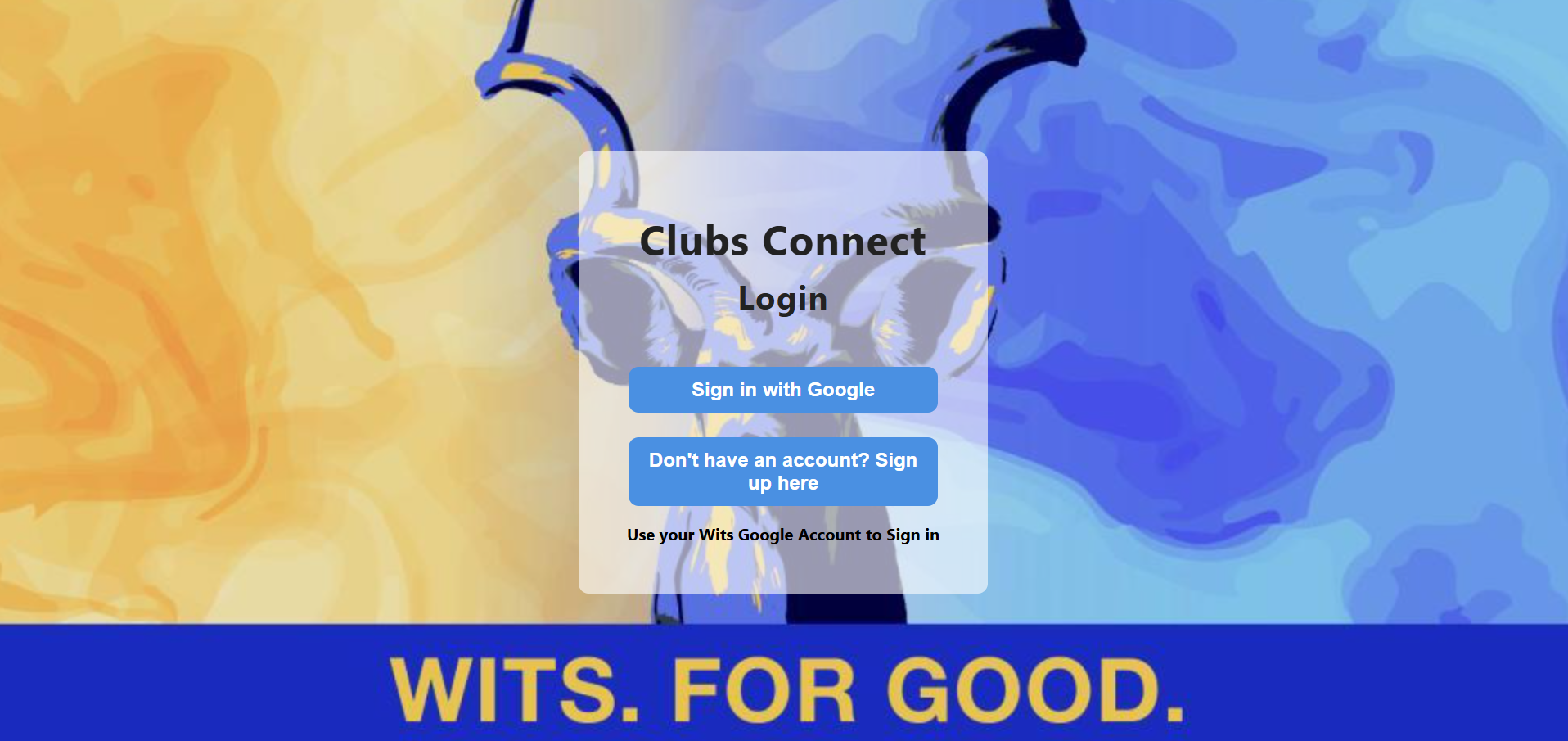
Section titled “Accessing the Application”- Open the Clubs Connect web application: Clubs Connect App
- Sign in using your university credentials.
- For new users, click Sign Up to create an account using Google.
Navigation Overview
Section titled “Navigation Overview”The main sections of Clubs Connect are:
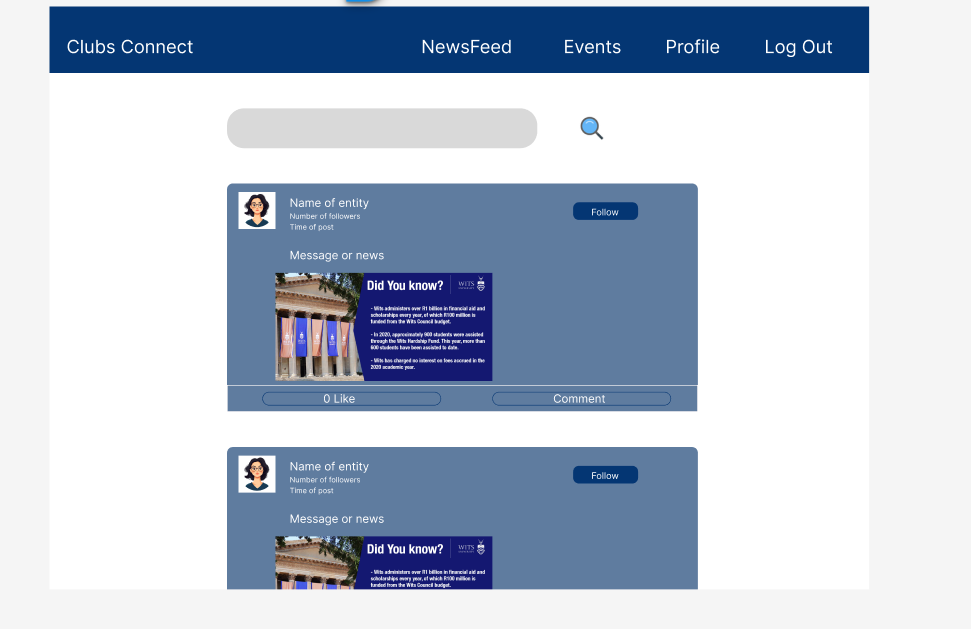
- Newsfeed: Overview of latest posts.
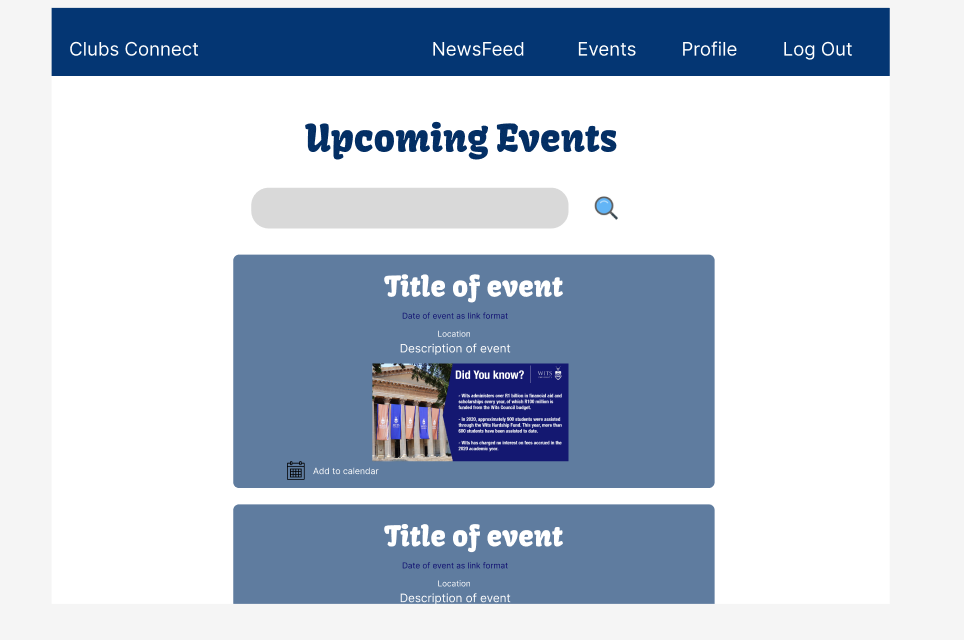
- Events: View upcoming events and add events to Google Calendar.
- Posts: View posts, interact with posts (like or comment).
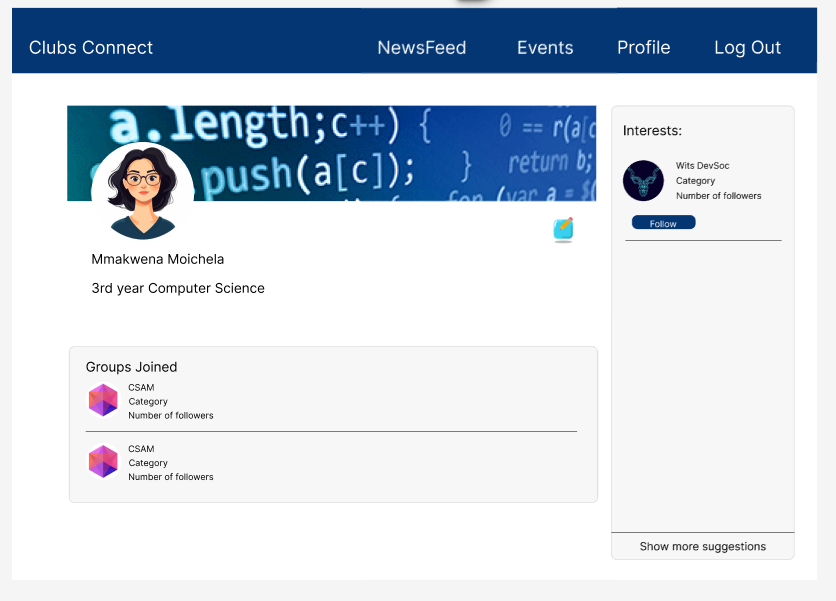
- Profile: Update your personal details, avatar, cover photo, and follow CSOs.
Features & Instructions
Section titled “Features & Instructions”1. Updating Profile
Section titled “1. Updating Profile”- Go to the Profile tab.
- Add a bio, upload a profile photo and cover photo.
- Follow CSOs to receive their posts on your newsfeed.
2. Events
Section titled “2. Events”- Navigate to the Events tab.
- Scroll to see events and their details, including date, time, location, and organizer.
- Use the Add to Google Calendar button to sync the event with your personal schedule.
3. Posts & Comments
Section titled “3. Posts & Comments”- Access posts on the Newsfeed.
- Scroll to see posts.
- Use Like to show interest or Comment to interact.
- Comments can be edited or deleted by the user who created them.
4. Executive & SGO Features
Section titled “4. Executive & SGO Features”Executives and SGO members have access to administrative features:
- Post announcements for executives.
- Add or edit events.
- Manage society memberships and subscriptions.
- Create CSOs (SGO).
Troubleshooting & FAQ
Section titled “Troubleshooting & FAQ”Q: I can’t log in with my student credentials.
A: Ensure your email and student number are correct. Contact the Clubs Connect Team.
Q: Events aren’t showing in my Google Calendar.
A: Make sure you are signed into your Google account and allow access when prompted.
Q: I cannot see executive features.
A: These features are restricted to designated roles.
Support & Feedback
Section titled “Support & Feedback”For further assistance or to provide feedback:
- Contact the support team: support@clubsconnect.co.za
- Please fill this form: Clubs Connect Feeback Form, to give feedback of the application
Glossary
Section titled “Glossary”- CSO: Clubs, Societies, and Organizations
- SGO: Student Governance Office
- Exec: Executive member of a CSO